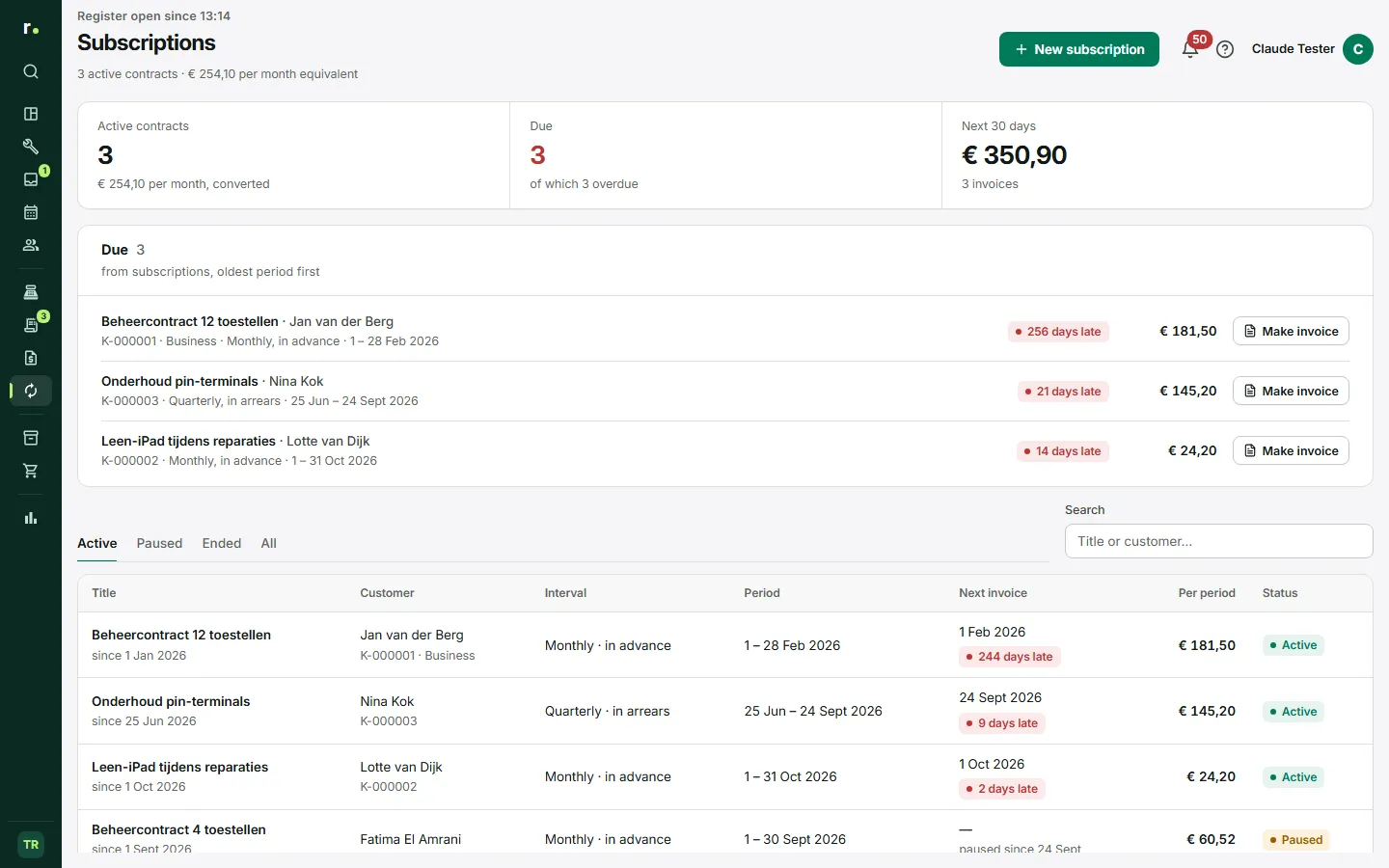
With a subscription you record a fixed contract with a customer, such as a management contract or a yearly service. Every period the contract is ready to be invoiced. Nothing goes out by itself: you check and complete every invoice yourself.
Where to find it
In the sidebar, group Sales, click Subscriptions. At the top you see the number of active contracts with the monthly equivalent amount, what is due to be invoiced and what comes in over the next 30 days. Below that are the Due block and the list of contracts, with the filters Active, Paused, Ended and All.
You can also start a subscription from a customer’s profile, with New subscription. That is also where the Subscriptions block with that customer’s contracts is.
Creating a subscription
- Click New subscription.
- Choose the Customer. A subscription always has a customer.
- Give it a Title, for example “Management contract 12 devices”. That is what it is called on the invoice.
- Under Lines, every period fill in the description, the quantity, the price including VAT and the VAT rate. You can fill a line from a product and then change the price; that is the contract price.
- Choose the Interval: Month, Quarter, Half year or Year.
- Under Billing choose In advance (on the first day of the period) or In arrears (on the last day).
- Choose a Start date and, if needed, an End date. Without an end date the contract keeps running.
- Fill in a Note on every invoice if you like and click Save subscription.
The day of the start date sets every following period. If you start on the 31st, in a shorter month that becomes the last day of that month. As soon as there is an invoice, the start date is fixed.
Making an invoice
When a period is due, the contract appears in the Due block, on this page and at the top of Receipts & invoices. The oldest contract is at the top, with how many days it is overdue.
- Click Make invoice. Repairflow prepares a draft and opens it in the till.
- Check the lines. You can change them, add a line or give a one-off discount.
- Take payment with Card, Cash or Split for a paid invoice, or choose Invoice and On account for an open invoice with a due date.
A subscription always becomes an invoice, never a receipt. After completion the contract moves on to the next period. If a draft is already prepared, the button is called Open draft, so you never make two invoices for one period.
The invoice shows the title of the subscription and the period. In the list of Receipts & invoices you recognise them by the Subscription label.
Managing a contract
Click a contract to open it. You see the lines, the total per period and Invoices from this contract. You can choose from:
- Edit: changes apply only to future invoices.
- Pause: the contract no longer appears under Due.
- Resume: choose what happens to the missed periods, Invoice them after all or Skip.
- Skip period: the period that is due now is not invoiced.
- Next period…: set the first day of the next period to invoice yourself, for example after a credit note.
- End: final. The invoices remain; for a continuation you make a new subscription.
- Delete: only for a contract that has never been invoiced.
If you skip a period, an open draft for that period is cancelled automatically. After the last period before the end date the contract ends by itself.
Who can do what
- Owner and manager: create, edit, pause, end and delete subscriptions.
- Technician: does not see the Subscriptions page and cannot manage contracts. The Due block is on pages a technician does not have in the sidebar, so invoices from a subscription are made by the owner or a manager.
Tips
- Choose In arrears for work you only know after the period, and In advance for a fixed amount.
- If you do not want to charge for a period, use Skip period instead of making an invoice and crediting it.
- A change mid-period is not calculated pro rata; settle a one-off difference on the draft.
Updated on