The Customer portal is the side of Repairflow your customers see, at my.repairflow.eu. There a customer tracks their repair, signs, signs in to see their repairs and documents, and books a repair with your shop themselves. This chapter explains what your customer sees and what you set up for it.
Where to find it
Your customers use my.repairflow.eu. You set up the portal through the Shop menu at the bottom left of the sidebar:
- Online booking opens your booking page settings (owner) or the Repair Menu (manager).
- The switches Show repair costs to customers and the assigned employee are in Settings under Profile & opening hours.
You do not need to set anything up for signing in with an account.
Tracking a repair without an account
Every repair has a reference number of eight characters. It appears in the emails to the customer, on the label and on the job ticket. The emails also contain a link to the tracking page.
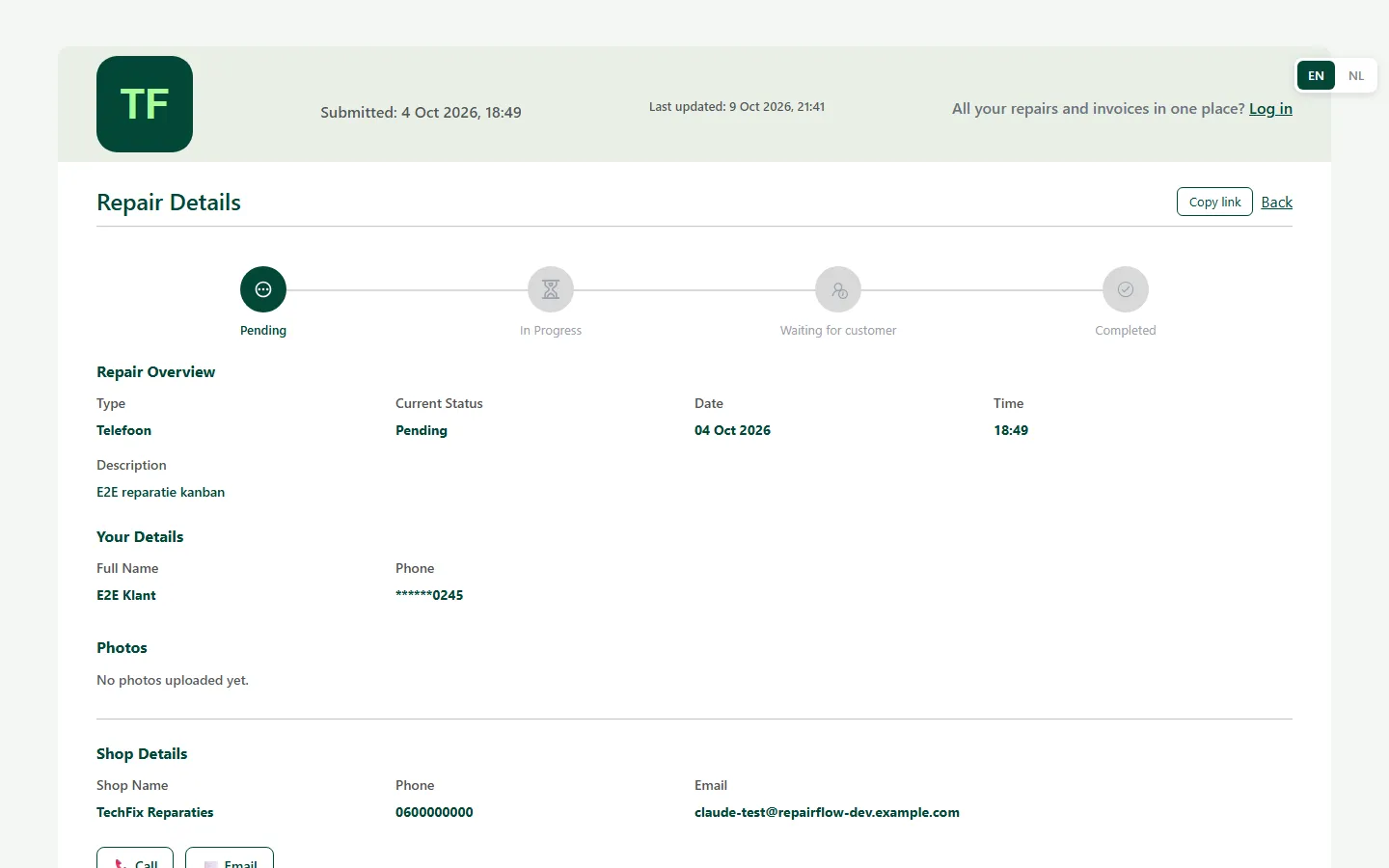
On the tracking page the customer enters their reference number and sees:
- the status of the repair;
- the notes you have made visible to the customer;
- the photos from before, during and after the repair;
- the costs, only if Show repair costs to customers is on;
- the assigned employee, only if you switch that on;
- your shop’s phone number and email address.
The customer’s phone number only shows its last four digits.
Signing by email
If you request a signature for a repair with the email link, the customer receives an email with a link. They see a summary of the repair, read your terms of service, sign and confirm. The link works for 48 hours and only once. A new request replaces the previous link. See the Repairs chapter.
Signing in with a login link
A customer signs in without a password.
- They enter their email address on my.repairflow.eu and click Send me a login link.
- If that address is on a customer card at your shop, they receive an email with a login link. That link works for 15 minutes and once.
- After clicking, they stay signed in for 30 days, until they sign out.
If the address is not on any customer card, they receive an email asking them to ask your shop to add the address.
Confirming the customer card
The first time, the customer confirms for each shop that the customer card is theirs, with the last four digits of their phone number or with the repair number of one of their repairs, and clicks Confirm. After five attempts within 15 minutes they have to wait a while.
What a signed-in customer sees
- Overview: their most important repair (first a repair that is ready for pickup, otherwise one in progress), the repairs in progress, the latest documents and whether your shop is open today.
- Repairs: ongoing and completed repairs, with the status in four steps, your visible notes, photos and, if you show them, the costs.
- Documents: receipts, invoices, credit notes and quotes, with status and PDF. An open invoice shows the Pay button if you have connected online payments.
- Me: their salutation, name, phone numbers, address and whether they want to receive a review request. Their email address, business details and customer number can only be changed by the shop.
When a customer changes their details, this is saved immediately. You receive a notification and a line is added to the activity log. A customer never sees your internal notes, purchase prices or margins.
Online booking
With Online booking your shop has its own booking page at my.repairflow.eu/ssp/ followed by your shop’s name, in your own house style. The customer:
- chooses a brand and model, or a service;
- chooses one to five repairs and sees the price and availability;
- enters name, phone and optionally email, and optionally chooses a preferred day and time within your opening hours;
- checks everything and sends the request.
They receive a reference number and, if they gave an email address, a confirmation. The request arrives in Requests, see the Requests chapter.
What you set under Online booking
- Under Booking portal, switch on Enable online booking. By default it is off.
- Under Your booking page you copy the Public link, open it with Open booking page or show the QR code. Under Direct links there are links per brand or service.
- Under Show repair prices, choose All prices, Fixed prices only or No prices. With no prices the customer sees “price on request”; service fees stay visible.
- Under When a part is out of stock, choose Bookable with notice or Quote only; with Quote only the price becomes “on request”.
- Under How you show part availability, choose Hidden, Only when ready, Ready or needs ordering or Full detail. A customer never sees the name of your Wholesaler.
- Optionally write a text under Disclaimer (Dutch) and Disclaimer (English) and choose Everywhere or Summary only under Where the disclaimer appears. That text appears exactly as you write it.
- Under Service methods, switch on what you offer: Drop off in store, Ship device, Pickup service or Repair on location, optionally with a fee.
You save with Save Changes. If online booking is on and your privacy policy is still empty, you receive a warning with the Go to Legal button.
The repair menu
In the Repair Menu you record what customers can book: per device the repairs, with a fixed price, price on request or the price of a linked product. With Add from catalog you add many devices at once; they arrive as “price on request” until you fill in prices.
Who can do what
- Owner: the Online booking settings and the Repair menu.
- Manager: the Repair menu.
- Technician: viewing and handling requests.
Tips
- Put a customer’s email address on their customer card: they can then sign in and download their documents themselves.
- Explicitly set notes the customer may see to visible.
- Connect online payments, so a customer can pay an open invoice straight away in the portal.
- Hang the QR code of your booking page at the counter or put the link on your website.
Updated on