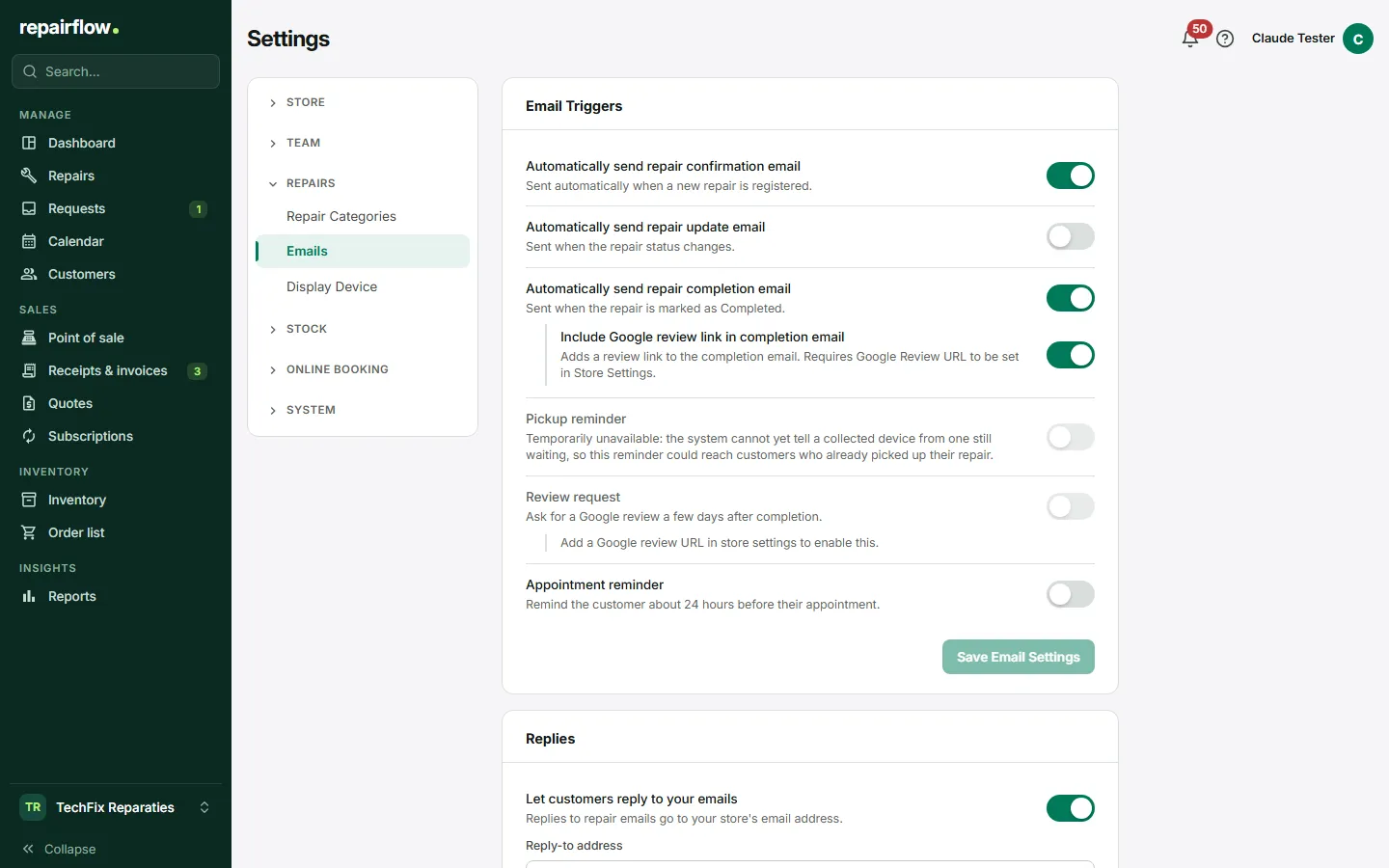
In Settings you set up your shop: your details, your opening hours, the Point of sale, the emails to customers and the lists you choose from for repairs and inventory. Every tab saves its own data, and you only see the tabs that belong to your role.
Where to find it
At the bottom left of the sidebar, click the row with your shop name and choose Shop settings. On the left is a navigation card with groups. Click a group name to open or close it and click a tab to open it. On a phone, groups and tabs become two rows of buttons.
Language and theme (Auto, Light, Dark) are not in Settings but in the menu behind your avatar at the top right.
Saving per tab
There is no save button for the whole page. Every tab saves separately:
- Forms have their own save button, sometimes one per section. That button can only be used once you have changed something.
- The lists (such as repair categories and brands) save every change straight away.
- A logo or shop icon is saved immediately after uploading.
If a tab fails to load, you see a message with a button to try again, and never an empty form.
The Store group
- Profile & opening hours: logo, shop icon, shop name, owner name, phone, website, Google Review URL, address, VAT rate and currency. Then three switches: show the assigned employee, show repair costs to customers and Email Language (Dutch or English for all customer emails). Below that, the default checklist for new repairs, and your opening hours with time zone and time format. One Save Changes button at the bottom.
- Register: everything for the Point of sale, see the Point of sale chapter.
- Online payments: connect your own Mollie account for the Payment link, see the Receipts and invoices chapter.
- Reminders: the settings for Payment reminders, see the Payment reminders chapter.
- Legal: your Terms of Service and your Privacy Policy. A customer sees the terms of service when signing; the privacy policy appears with Online booking. Data Handling is Repairflow’s fixed text.
- Billing: your Repairflow subscription and your invoices.
The Team group
Employees is the team overview, see the Team chapter.
The Repairs group
- Repair Categories: the categories you choose from for a repair.
- Emails: the automatic emails to customers, see below.
- Display Device: connect the tablet at the counter, see the Display device chapter.
The Stock group
- Stock locations, Product categories, Brands and Suppliers: lists you keep yourself. Suppliers here are your contacts, not the connection with your Wholesaler.
- Wholesale: connect your wholesaler account for purchase prices. Price changes only appears once a wholesaler is connected. See the Inventory chapter.
Working with the lists
- Drag a row by its handle to change the order.
- Click the pencil next to a name to rename it.
- Switch a row off with the switch when you no longer use it.
A duplicate name is refused. Deleting is not possible: you switch a row off, so old repairs and products keep their details.
The Online booking and System groups
- Online Booking and Repair Menu: your booking page and the menu customers choose from, see the Customer portal chapter.
- Activity Log: who did what in your shop.
- Help Center: ask questions about Repairflow, see the Knowledge base and Help chapter.
The automatic emails
The Emails tab has three cards.
Email triggers
For each type of email you switch automatic sending on or off, and you save with Save Email Settings:
- the confirmation for a new repair;
- the update when a status changes (off by default);
- the email when a repair is ready for pickup, optionally with a link to your Google review. Here you choose between Ask first (default) and Send automatically, see the Repairs chapter;
- the appointment reminder, about 24 hours in advance (off by default);
- the review request, a configurable number of days (1 to 30) after completion. This only works if you have filled in a Google Review URL (off by default).
Replies
Here you decide where a customer’s reply ends up. By default this is on and a reply goes to your shop’s email address. You can also fill in a different address.
Preview & test
Choose a template and a language and you see what the email looks like. Enter an address under Send a test email to and click Send test. The subject of a test email starts with [TEST]. You can send ten test emails per hour.
You choose the language of all customer emails with Email Language in Profile & opening hours.
The setup guide
A new shop gets a setup guide with seven steps the first time it signs in: shop profile, repair categories, VAT rate, team, customer emails, terms and growing. Every step saves into the same settings as above. With Finish later you continue where you were; meanwhile the Dashboard shows a progress card. Only the owner sees the setup guide.
Who can do what
- Owner: all tabs.
- Manager: everything except Profile & opening hours, Legal, Billing, Online Booking and Activity Log. A manager does see the Repair Menu.
- Technician: only the Help Center.
Tips
- Fill in your Google Review URL before you switch on the review request.
- After adjusting your emails, send a test email to yourself.
- Close groups you rarely use: the page remembers which groups are open.
- Write your terms of service before you collect signatures: the text is recorded with every signature.
Updated on