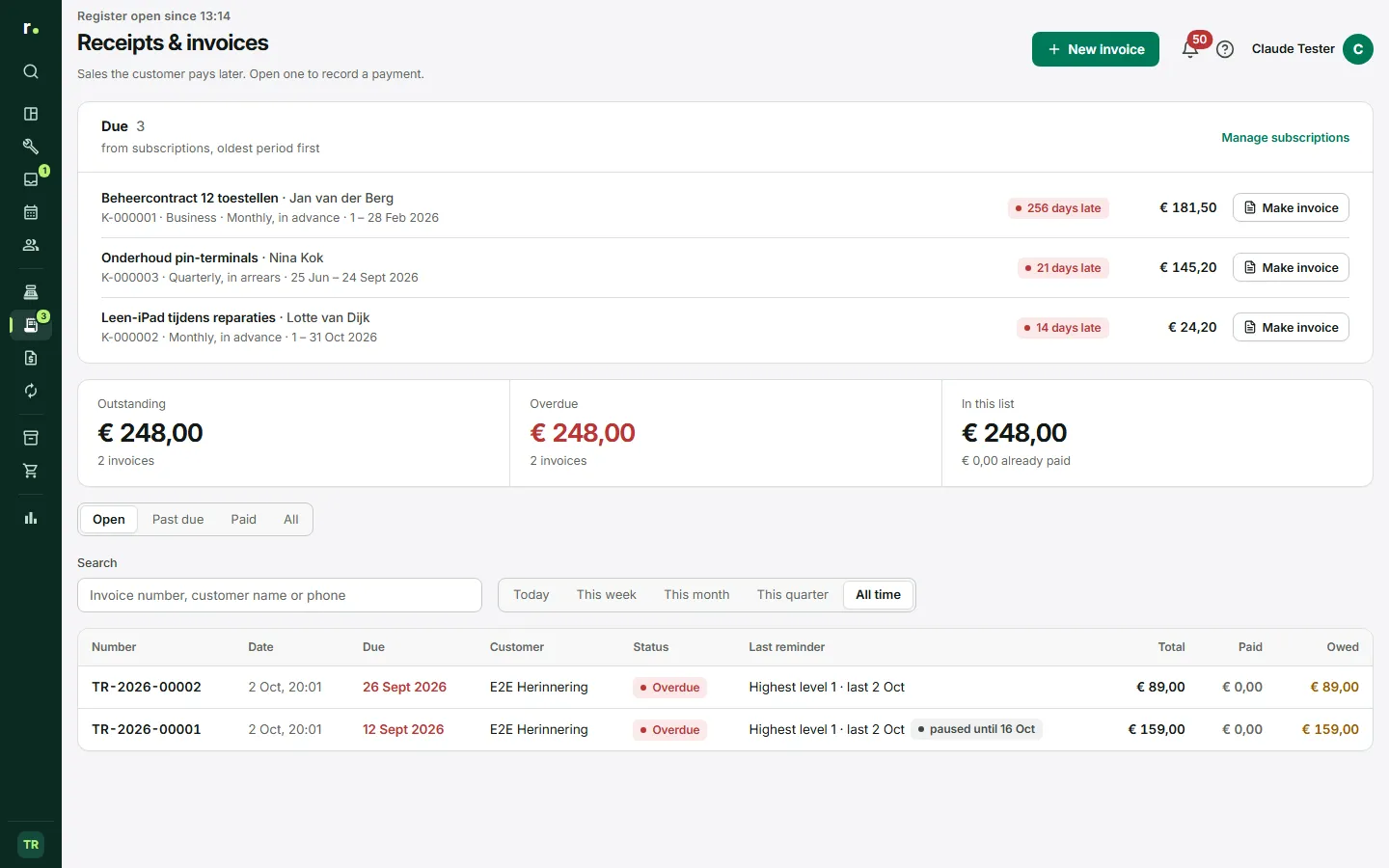
This is where the documents the point of sale produces are kept: receipts, invoices and credit notes. You follow up open invoices, record payments, send reminders and let customers pay online with a payment link.
Where to find it
In the sidebar, group Sales, click Receipts & invoices. You see the invoices with the Outstanding and Overdue figures at the top. All receipts and credit notes are found through All sales in the Recent sales block on the Point of sale day overview. There you filter with All, Receipts, Invoices and Credit notes.
Finding a document
- Choose a filter: Open, Past due, Paid or All.
- Choose a period, from Today to All time.
- Search by invoice number, customer name or phone.
Click a row to open the document in a drawer next to the list. There you see what was sold, the payments, the due date and the actions.
Recording a payment
- Open the invoice and click Record payment.
- Choose the payment method and enter the amount.
- Confirm. If the customer pays only part, the rest stays owed.
Doing a refund
A refund always starts from the original receipt or invoice. Click Refund, state per line how much comes back and whether it goes back into stock, and enter a reason. If something is still owed on the invoice, the refund is first set against it; you only pay out the rest. Every refund gets its own credit note with its own number.
An open invoice that is wrong can be cancelled with Cancel invoice.
Emailing, printing and PDF
- Email invoice, Email receipt or Email credit note sends the document to the customer, with a PDF attached.
- Print and Print A4 print the document through your browser.
- As an invoice turns a paid receipt into an invoice after all, with the same number.
Payment reminders
Sending a reminder
- Open an outstanding invoice and click Send reminder.
- Choose Friendly reminder, Formal reminder or Final notice.
- Check the email address and add a personal text if you like.
- Send.
The email contains the invoice as a PDF and, if you have connected Mollie, a button to pay straight away. A formal reminder and a final notice state a new final payment date.
Prepared or automatic
Open the shop menu at the bottom left, choose Shop settings and go to Reminders. Choose the mode:
- Manual: only when you click Send reminder yourself.
- Prepared: the To remind block shows every day which invoices are due. You click Send, Skip until or Send all.
- Automatic: Repairflow sends them itself every morning at 9 o’clock (shop time), and you get a notification.
By default the three levels follow 3, 14 and 28 days after the due date. The schedule skips business customers by default, and you turn reminders off per customer on the customer card. Sending by hand is always possible. You can write your own text per level and language.
Collection costs
If you turn on Mention collection costs in the final notice, you can mention the collection costs in a final notice. Repairflow calculates them under the Dutch Collection Costs Act: 15 % of the first € 2,500, at least € 40 and at most € 6,775. The customer then gets at least 15 days to pay. You remain responsible for how you use it.
The dossier
Every invoice has a dossier with everything that happened: reminders, payments, credit notes and notes. With Add note you record that you phoned, sent a letter or made a payment arrangement. A payment arrangement pauses the reminders until the agreed date; a dispute keeps the invoice out of the schedule until you add Dispute resolved. The dossier cannot be changed or deleted. With Collection dossier (pdf) you turn it into one PDF, for example for a debt collection agency.
Paying online with a payment link
Connecting Mollie
- Create a Mollie account for your shop and complete the verification there.
- In Shop settings go to Online payments and click Connect Mollie.
- Log in to Mollie and give permission. Back in Repairflow the connection is confirmed once more; if your Mollie organisation has more than one website profile, choose the profile for this shop.
The money goes straight into your own Mollie account. With Test mode you try it out first without real money.
What the customer sees
An unpaid invoice gets a “Pay now” button in the email and a QR code on the PDF. Both open a payment page on my.repairflow.eu with your logo, the amount owed and the payment methods you have turned on in Mollie, such as iDEAL. In the drawer you copy the link with Copy payment link.
After payment
The payment is booked automatically and the invoice is marked as paid. You get a notification and the customer receives the paid invoice by email. If a payment does not seem to come through, click Refresh status. If the customer paid too much, Repairflow books only what was owed; you pay back the difference through your Mollie dashboard.
Who can do what
- Owner and manager: everything, including refunds, cancelling invoices and the settings for reminders and online payments.
- Technician: does not see this page and cannot open the documents here. Straight after taking payment at the point of sale, a technician can still print or send the receipt or convert it with As an invoice.
Tips
- Use the Past due filter as a work list for your reminders.
- Record every phone call in the dossier, so a colleague knows what was agreed.
- Turn Test mode off again before you send real invoices.
Updated on