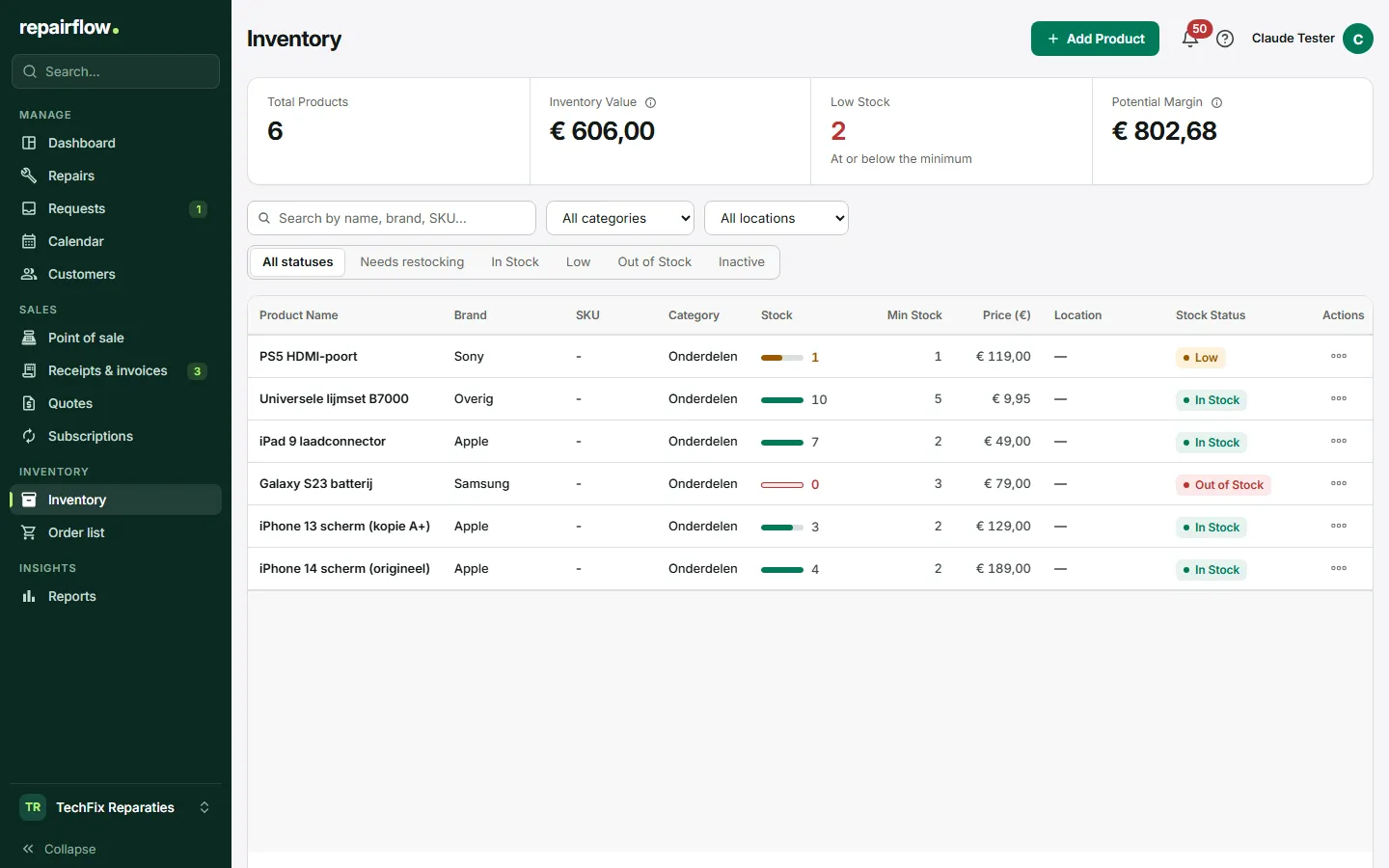
In Inventory you manage all the products and parts of your shop: what you have, where it is, what it costs and when you need to reorder. You can link your own wholesaler account, so that purchase prices are updated automatically every night.
Where to find it
Inventory is in the sidebar in the Inventory group, directly above Order list. The related settings, such as product categories, stock locations and the link with your wholesaler, are in the Shop menu at the bottom left under Shop settings, in the Inventory group.
The inventory page
At the top are four figures: the number of products, the inventory value at purchase price, the number of products with low stock and the potential margin. A click on low stock filters the list to products that need restocking.
Below that you can search by name, brand, SKU or location and filter by category, status and location. Each product shows a stock bar. If Repairflow does not know the stock, there is no bar and no warning; unknown stock is not the same as out of stock.
Adding a product
- Choose Add Product at the top right.
- Enter the name and optionally the brand, SKU, category, supplier and description.
- Enter the purchase price and the selling price excl. VAT and choose the VAT rate. Repairflow calculates the price incl. VAT for you.
- Enter the current stock and the minimum stock.
- Optionally choose a stock location and save.
A SKU may appear only once within your shop.
Product categories and locations
You manage categories and stock locations in the settings, on the tabs Product categories and Stock locations. A location has a name and a short code, such as A1. You can drag the order and make a location inactive; changes are saved immediately. You cannot delete a location that still has products assigned to it.
Adjusting stock
Click a product to open the details and choose Adjust Stock. You choose one of three ways:
- Add: a quantity is added, for example after a delivery.
- Remove: a quantity is taken off. You cannot remove more than there is.
- Set: you set the stock to a fixed quantity, for example after a count.
Always choose a reason, such as Purchase, Damaged, Returned, Manual Correction or Inventory Count, and optionally add a note. With View History you later see every change, who made it and why.
Counting stock
When you count your stock, use Set for each product with the reason Inventory Count. That way the history shows exactly where the count differed.
When stock changes by itself
If you link a part to a repair, it is taken off the stock as soon as the repair moves from a work status to Ready for pickup, or straight to Completed. Going from Ready for pickup to Completed takes nothing more off. If you set the repair back to a work status, the part goes back into stock. If a part is only added later, the remaining quantity is taken off when you settle the repair at the Point of sale.
Printing labels
Choose Print Label on a product. The label shows the name, the brand, the SKU, the location and the price incl. VAT, with a QR code. If you scan that code on a logged-in device, the product opens directly.
You can also print a QR label for each stock location in the settings. Scanning opens the inventory page filtered to that shelf or drawer.
Linking your wholesaler
With the link, Repairflow fetches the catalogue of your own wholesaler account every night and updates the purchase price of every product linked to it.
- Open the Wholesale tab in the settings.
- Paste the token from your wholesaler account under API token and optionally enter the expiry date.
- Choose Connect. Repairflow tests the token straight away. If it is correct, it is stored encrypted.
With Test connection you check the link, with Sync now you fetch the prices immediately. If your token expires within 30 days, or no longer works, you see a warning. Disconnect stops the link, but your product links are kept.
Linking or importing products
- Auto-match to wholesale links all products whose SKU exactly matches an article from your wholesaler.
- Link to wholesale on a product lets you search the catalogue yourself.
- Add from wholesaler turns a catalogue article into a new, linked product in one step. You can do the same in the cost lines of a repair.
Margin and price changes
On the Wholesale tab you set your margin rules: a default margin, optionally a margin per category, a minimum margin in euros and how prices are rounded, for example to ,95. Repairflow uses these to calculate the selling price. A small change is applied immediately. A larger change is placed on the Price changes tab, where you choose per line or all at once to apply or reject. The purchase price is always updated; only the price for the customer waits for you.
Stock at your wholesaler
For a linked product you see whether your wholesaler has it in stock. That is information only. Your own stock never changes because of it.
Who can do what
- Everyone in your team can use the inventory page, add products and adjust stock.
- The owner and the manager set up product categories, stock locations, the wholesaler and the margin rules, link products to the wholesaler and review price changes.
- A technician choosing a part sees only your own inventory, not the wholesaler’s catalogue.
Tips
- Enter a minimum stock for every part. Then it goes onto the order list by itself when you drop below that quantity.
- Use your wholesaler’s SKU as your own SKU. Then automatic linking works in one click.
- Set a minimum margin in euros, so that cheap parts are not sold for a few cents of margin.
Updated on