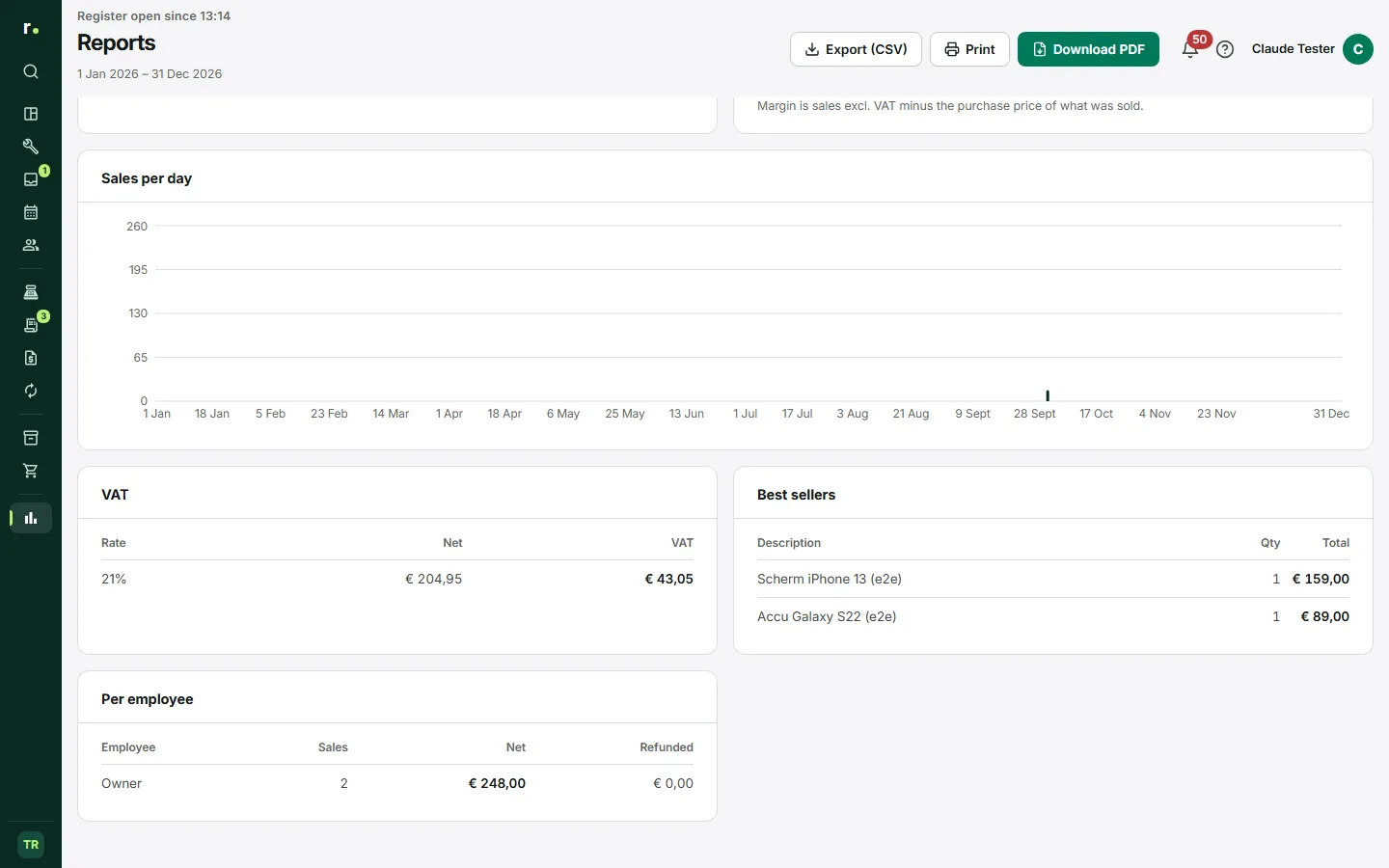
In Reports you see what your shop sold and received in a period, from the Point of sale data. For each period you make an A4 sales report that you can give to your accountant. The owner also finds the activity log here: an overview of who did what in the shop.
Where to find it
Reports is in the sidebar in the Insights group. The owner sees two tabs at the top: Sales and Activity log. A manager sees only the sales report.
Choosing a period
Choose the period at the top: today, yesterday, week, month, quarter, year or a custom period with a start and end date. The period is calculated in your shop’s time zone.
What the report shows
- The revenue incl. and excl. VAT, with the comparison to the previous period.
- The sales per day in a chart; for a year per month.
- The receipts per payment method, such as card, cash and bank.
- The VAT per rate, after deducting credit notes.
- Receipts compared with invoices, and what is still outstanding and overdue.
- The margin and the best-selling products.
- The revenue per employee, including refunds.
The sales report for your accountant
At the top right are three buttons:
- Download PDF saves the sales report as a PDF.
- Print opens the same PDF in a new tab and asks for the print dialogue there. If your browser blocks the new tab, the PDF is downloaded.
- Export (CSV) downloads a file with one line per receipt, invoice and credit note, which you can open directly in Excel.
What the PDF contains
The first page is the summary: the revenue incl. and excl. VAT, the VAT payable, the refunds, the revenue per group and per VAT rate, the receipts per payment method and the discounts and refunds. After that come the blocks your accountant needs:
- Cash: the opening balance, what came in as cash, what went from cash to bank and from bank to cash, payouts, cash differences and the closing balance, over the shifts in that period.
- Receivables: the open invoices on the start and end date, what was invoiced, received and credited and what is past the due date.
- Documents: the number of receipts, invoices and credit notes with their number series.
Revenue counts on the invoice date, receipts on the payment date. The following pages give the figures per day, per employee and the top ten, and lists of credit notes, open invoices and payouts from the cash drawer. Purchasing and profit are not included, because the Point of sale does not know them.
The activity log
On the Activity log tab you see who did what, grouped per day: a repair created, a status changed, stock adjusted, a customer edited, the register opened, and so on. If someone from Repairflow support signs in to your shop at your request, you see that too.
- Optionally choose an action and a type, such as customer or product.
- Choose a start and end date.
- Choose Apply.
Without a date you see the last 24 hours. You also find the same log in the settings under Activity Log.
Quick search across the app
At the top of the sidebar is the search field Search…, which you can also open with Ctrl K, or ⌘ K on a Mac. Type a name, phone number, reference number or product name and you find repairs, customers, products and pages of your own shop. Start with a slash to search only one kind, for example only customers. With the arrow keys you choose a result, with Enter you open it.
Who can do what
- The owner and the manager see the sales report and can download, print and export it.
- A technician sees no reports, no receipts and invoices and no margin figures; those are for the owner and the manager.
- The activity log is for the owner only.
- Everyone can search; a technician finds no colleagues and no settings they are not allowed to open.
Tips
- For your accountant, choose the quarter and use Download PDF. A new report over the same period gives the same figures.
- If a shift is still open, the closing cash balance appears in the report as expected. Close the register first if you want to see the real count.
- Use the activity log when something has changed unexpectedly; you see exactly who did it and when.
- Use Ctrl K to open a customer or repair quickly without clicking through menus.
Updated on