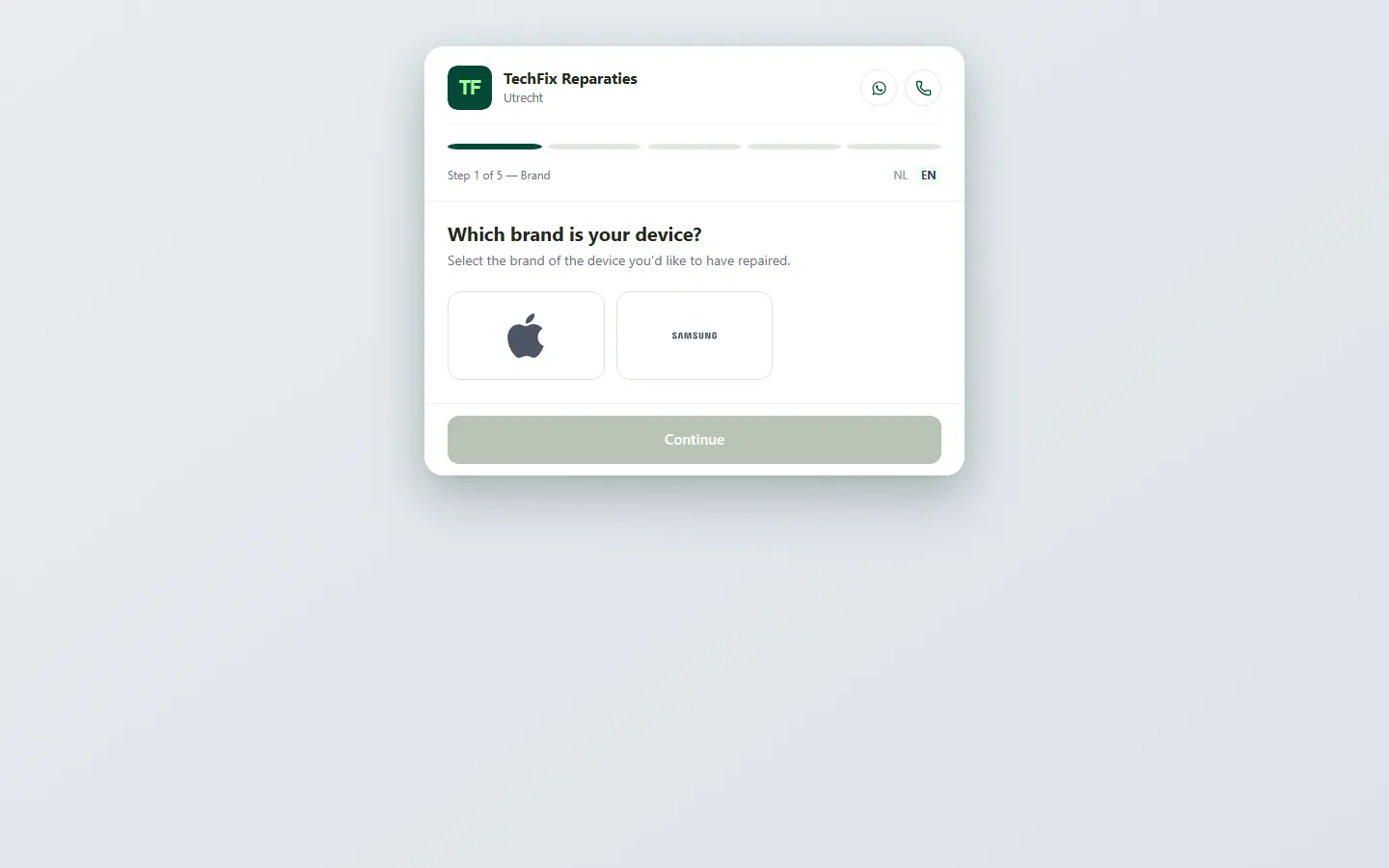
Customers can request a repair themselves through your own booking page. They choose their device, one or more repairs, leave their details and optionally pick a preferred day. All those requests arrive in Requests. There you review them, adjust them after contacting the customer and turn them into a real repair.
Where to find it
Requests is in the sidebar in the Manage group. A counter next to the row shows live how many new requests are waiting. When a request comes in, you also get a notification at the bell at the top right. A click on that notification opens the request directly.
You set up the booking page itself and the repair menu customers choose from through the Shop menu at the bottom left, under Online booking. That is described in the Customer portal chapter.
The list of requests
Above the list are four tabs with counters: New, Approved, Rejected and All. For each request the list shows, among other things, the customer, the device, the chosen repairs and when it came in. On a phone the rows become cards.
Click a request to open the details in a drawer on the right.
What a request contains
- The customer’s contact details: name, phone number and optionally an email address.
- The device and the chosen repairs, possibly with the chosen quality, such as original or copy.
- For each repair the price and the availability as the customer saw them at the moment of the request. These are recorded, so you always know what you showed the customer.
- The service method, such as dropping off, sending in or having it collected, with the related fee and possibly an address.
- The preferred day and preferred time, or no preference.
- Any remark from the customer.
- The reference number the customer also received in the confirmation.
Adjusting a request
Often you call or email the customer first. If you agree on something different, you adjust the request as long as its status is still New.
- Open the request and choose Edit.
- Change what is needed: the contact details, the lines and prices, the service method, the address or the time. You can also add a separate line that is not in your menu.
- Optionally add a note about what you agreed with the customer.
- If you want the customer to approve the adjusted request online, switch on Ask the customer for online approval. The customer sees the change on their status page and can approve it there.
- Choose Save changes.
If a name, phone number, description or price is missing, you see the message at that field and nothing is saved. Every change goes into the history of the request, with who changed what and when.
Approving a request
When you approve, the request becomes an ordinary repair.
- Open the request and choose Approve.
- Under Assigned employee, choose who gets the repair. This is required, because every repair has an employee.
- Check the category, the description and the cost lines. The lines are already filled in with the price the customer saw. A repair with price on request starts empty; then enter a real price. You can also link a part from your inventory here straight away.
- Check the scheduling. It is filled in with the customer’s preference.
- Choose Approve & create repair.
The repair then appears in Repairs and, if you scheduled it, in the Calendar. The customer gets the ordinary confirmation email if you have that automatic email switched on.
When a part is missing
When you approve, Repairflow looks at your inventory at that moment, not at what the customer saw. If a linked part is not in stock, it goes onto the order list and the repair gets the status Waiting for parts. See the Order list chapter.
When the customer already exists
If the phone number belongs to an existing customer with a different name or email address, you see both side by side. You choose yourself whether to keep the existing details or update them. A request never silently overwrites a customer record.
Rejecting a request
- Open the request and choose Reject.
- Optionally enter a reason.
- Choose Reject request.
If the customer gave an email address, they receive an email with your reason. Rejected requests are deleted automatically after 90 days.
Tips
- If you are unsure about the price or the device, call the customer and record the agreement with Edit before you approve.
- Keep an eye on the counter in the sidebar; a quick response makes online booking worthwhile for customers.
- Use the box for online approval if the price changed after your contact. Then you have the customer’s consent on record.
- Link parts to repairs in your repair menu. Then the customer sees the availability and a missing part goes onto the order list by itself on approval.
Updated on