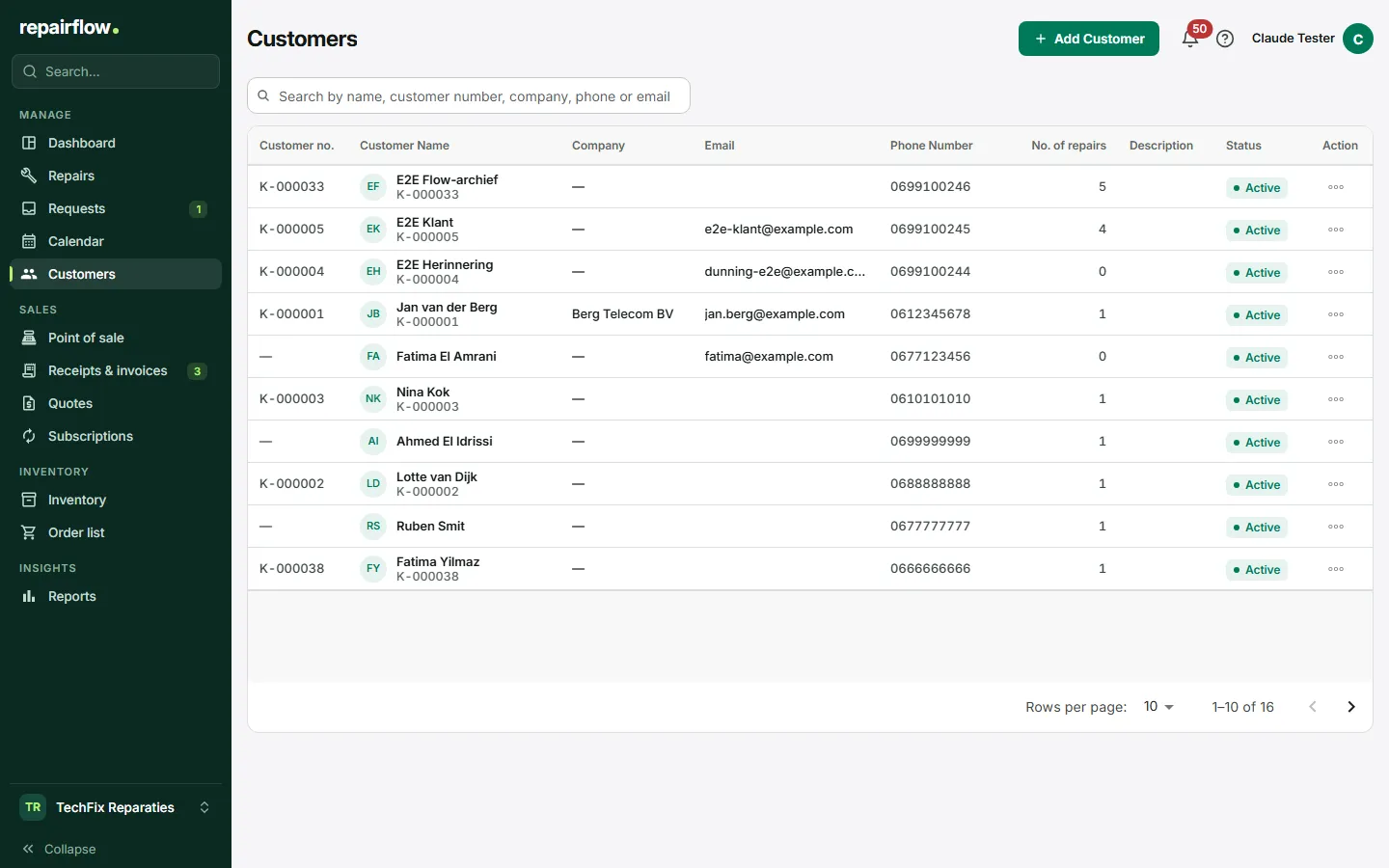
Customers holds all of your shop’s customers. Every repair, sale, quote and online request belongs to a customer. For each customer you see the contact details, all repairs and purchases, and what still has to be paid.
Where to find it
Customers is in the sidebar in the Manage group. You can also find a customer with the search field in the sidebar (Ctrl K or ⌘ K).
The customer list
The list shows for each customer the Customer no., the name, the Company, the email address, the phone number, the number of repairs, a description and the status. Search at the top by any of those details. Click a customer to open the customer profile.
Every customer gets a fixed customer number, such as K-000123, one series for the whole shop. A customer from before customer numbers gets their number as soon as you open or edit them.
Adding a customer
You can create a customer in two ways: quickly with a repair, or in full on the customers page and at the Point of sale.
Quick form
When taking in a repair you only fill in name, phone and email. The phone number is required. Through More details you can fill in the rest as well if you want. See the Repairs chapter.
Full form
- On the customers page, click Add Customer at the top right.
- Fill in the details: salutation, initials, first name, middle name and last name, date of birth, address with street, house number, postcode and town, phone and a second phone, email, mail preference and internal notes.
- Save the customer.
You write a Dutch postcode as 1234 AB. If the phone number is already known for another customer, Repairflow offers that existing customer.
The customer profile
From top to bottom the profile shows:
- The header with name and customer number.
- A notice if the salutation or the address is still missing.
- Figures about visits, such as the total number of repairs, the first and the last visit.
- Figures about sales: the number of sales, the revenue and what is still Outstanding. Only the owner and the manager see this block.
- Contact Details.
- Repair History, with for each repair the category, status, date and total.
- Sales and invoices, this customer’s receipts and invoices.
- Subscriptions, with the button New subscription.
- Internal Notes, visible to your team only.
Changing details
In the profile, click Edit. The full form opens on the right with the current details. Change what is needed and save. You can also do it from a repair, with Edit customer details.
Completing old customer details
Customers from before the full form sometimes only have a name and an address as free text. If you open such a customer, Repairflow proposes a split into first name, last name, street, house number and postcode. Check the proposal and save. As long as you do not save, the notice keeps coming back; nothing is changed by itself.
Mail preference
- Not asked yet: the default. Review requests are sent.
- Yes, may receive mail: review requests are sent.
- No, no mail: the customer gets no review requests.
Messages about the repair itself, signature requests, receipts, invoices and quotes are always sent, whatever the mail preference.
Business customers
Fill in the company name, and if needed the VAT number and the eight-digit Chamber of Commerce (KvK) number. A customer with a company name is a business customer. Company name, VAT number and KvK number appear on the invoice and the credit note. At the Point of sale, a payment by a business customer automatically becomes a paid invoice.
Deleting a customer
Choose Delete in the customer’s menu. If the customer has repairs, you choose:
- Delete customer only: the customer disappears from your list, the repairs remain available.
- Delete customer and data: name, phone and email are anonymised and open repairs are cancelled.
In both cases the financial records are kept, as the law requires.
Customer portal
Your customer can log in themselves on my.repairflow.eu with the email address on their customer card. They receive a login link by email and see their repairs and documents there. So make sure the email address is correct. If the customer changes their own details, you get a notification. See the Customer portal chapter.
Who can do what
- Owner and Manager: everything, including the sales figures, the outstanding amount and the subscriptions in the profile.
- Technician: view, add, change and delete customers.
- The sales figures and the Subscriptions block are hidden for a technician.
Tips
- Fill in the full profile for a regular customer, so everything appears neatly on receipts and invoices.
- Use Internal Notes for arrangements the customer does not need to see.
- Set the mail preference to No, no mail if a customer does not want a review request.
Updated on