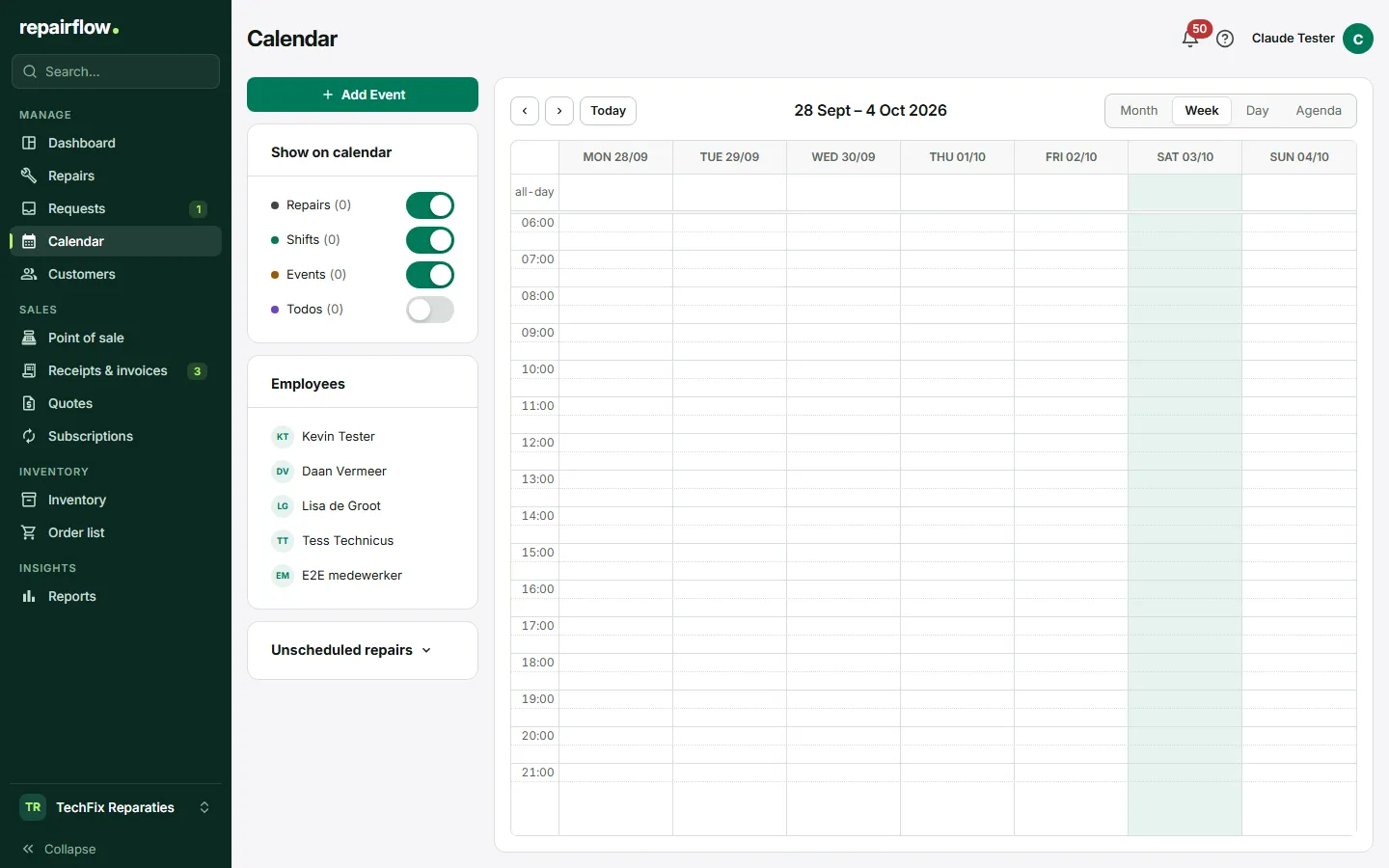
The calendar brings together everything that has to do with time: scheduled repairs, appointments with customers, your team’s shifts and leave, and tasks with a due date. You schedule repairs in it by dragging, and the calendar updates itself when someone else changes something.
Where to find it
Calendar is in the sidebar in the Manage group, between Requests and Customers. On the left of the page is the side panel with the Add Event button and the cards Show on calendar, Employees, Status and Unscheduled repairs. On a phone you open that panel with the menu button in the toolbar.
Views
Under View, choose how you look at the calendar:
- Month: the whole month overview.
- Week: seven days with times, the default on a computer.
- Day: one day in detail, the default on a phone.
- Agenda: a list of the week, or on a phone of the day.
With the arrows you go to the previous or next period, with Today you jump back to now. The week starts on Monday. Repairflow remembers the view you used last.
Scheduling a repair
A scheduled repair is the time slot in which the device is worked on. There are three ways to schedule one.
From Unscheduled repairs
- In the side panel, expand the Unscheduled repairs card. You see all repairs without a scheduled date, with a search field.
- Drag a repair onto a time slot in the calendar.
- The repair is saved and disappears from the list.
By double-clicking
Double-click an empty time slot. You go to a new repair in which the date and time are already filled in. Fill in the rest and save.
From the repair
In the repair, under Planning, fill in the Scheduled date and the Duration (min) and save. The default duration is 60 minutes. See the Repairs chapter.
You can drag a scheduled repair in the calendar to another time. Double-click it to open the repair. Right-clicking an item opens a menu to edit it or remove the scheduling.
Making an appointment
An appointment is a moment of contact with the customer, separate from the work on the device.
- Click Add Event and choose New appointment.
- Choose the type: Intake, Diagnosis, Pickup, Delivery, On-site visit, Call back or Other.
- Choose the date and time, the customer and, if needed, the repair the appointment belongs to.
- Save the appointment.
An appointment has a status: Scheduled, Confirmed, Completed, Cancelled or No-show. An appointment can also be recurring, for example a weekly team meeting. If you drag across empty time slots, you get a menu to add a repair, appointment or shift for that time straight away.
Shifts and leave
This way you see in the calendar who works when and who is absent. Click Add Event and choose Add shift or leave.
A shift
Choose Shift, the employee, the days and the start and end time. Set the shift to recurring for a fixed weekly pattern, or choose a single date. Shifts appear as green blocks in the calendar.
Leave
Choose Leave, the employee, the Leave type (Vacation, Sick leave or Day off) and the start and end date. One leave entry covers several days. Leave appears as a red bar in the calendar, and repairs scheduled during the leave get a warning.
If someone else schedules or changes a shift or leave for you, you get a personal notification about it at the bell at the top right. Only you see that notification.
Tasks
You can show tasks with a due date in the calendar. They are purple, so you do not confuse them with repairs. Tasks are off by default; turn them on under Show on calendar.
Filtering what you see
- Show on calendar: turn Repairs, Shifts, Events and Todos on or off per type.
- Employees: click an employee to hide their items or show them again.
- Status: hide repairs and appointments with a particular status.
Conflicts
When scheduling, Repairflow checks whether it fits. You get a warning if the employee already has something at that moment, is on leave or has an overlapping shift, or if the time slot falls outside your opening hours. If you want it anyway, click Schedule anyway. A duration shorter than 5 minutes or longer than 8 hours is not possible.
You set your time zone, the time format and your opening hours in your shop’s settings. Times outside the opening hours are slightly dimmed in the calendar.
Tips
- Schedule the repairs from Unscheduled repairs every morning, so the team sees what is on that day.
- Set shifts to recurring, so you only have to enter them once.
- Temporarily hide employees who are not in, so the week stays clear.
Updated on