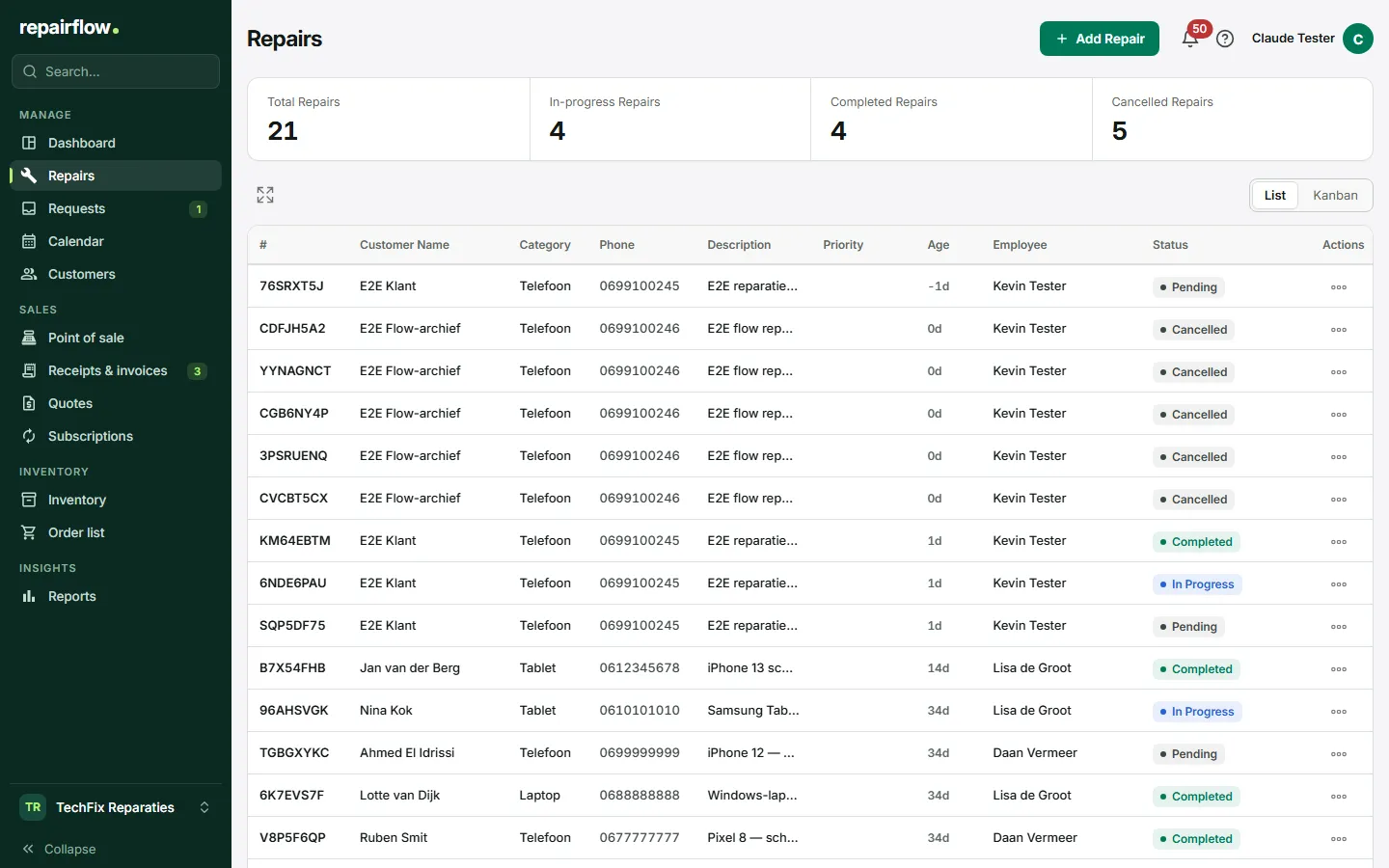
In Repairs you manage every repair your shop takes in. You record the customer, the device, the complaint and the costs, follow progress with statuses and take payment at the Point of sale at the end.
Where to find it
Repairs is in the sidebar in the Manage group. To find a repair, use the search field in the sidebar (Ctrl K or ⌘ K): you can search by reference number, category, description, status and customer details.
List and kanban
At the top are counters for the total, in progress, completed and cancelled. On the right, under View, choose between List and Kanban.
The list
The list shows 25 repairs per page with the reference number, the customer, category, phone, description, priority, age in days, employee and status. Double-click a row to open the repair.
The kanban board
The board has a column per status. Drag a card to another column to change the status, or within a column to set the order. A card shows the reference number, the customer and the phone number, for a quick call. With Columns you hide statuses you do not want to see.
The ··· menu
Every row and card has a menu with, among other things, Update Status, Add Notes, View Password (the device’s unlock code), Copy URL (the tracking link for the customer) and Print. On a repair that is ready for pickup or completed, Take payment is here too.
Taking in a repair
- Click Add Repair at the top right.
- On the Repair Info tab, fill in the customer, the repair and, if needed, the planning and the costs.
- Click Save & Next →. The repair is saved and you move on to Devices.
The other tabs only become available after the first save. Unsaved changes are never lost without warning.
Customer
Search for an existing customer by name, number or email, or create a new one. A phone number is required for a new customer. See the Customers chapter.
Repair
Choose the Category and the Assigned Employee, both required. Set a Priority (Normal, High or Urgent) and describe the complaint under Description. With ✦ Enhance you have the text neatly rewritten.
Planning
Optional: a Scheduled date, the Duration (min) and Expected ready. With a scheduled date the repair appears in the calendar.
Costs and parts
Add cost lines with description, quantity and unit price. You enter prices including VAT. At the top you search for a part from your own inventory; the price is then filled in. If the part is not in stock, put it straight on the order list with Add to order list. The eye icon shows the purchase price and margin; hidden by default, as the customer is often looking on. A repair can have at most 50 lines.
Devices
On the Devices tab you add one or more devices with Add device: brand, model, colour, serial number, IMEI, lock and notes. If the device has been in before, the search bar finds it and you see the earlier repairs. On a new device, your checklist from Settings (Default device checklist) is already in the Notes for this device field. Save with Save device.
Statuses
- Pending: taken in, not started yet.
- In progress: someone is working on it.
- On hold: parked; you pick it up again later, for example because you are waiting for an answer or approval from the customer.
- Waiting for parts: a part has to come in first.
- Ready for pickup: the repair is finished and the device is on the shelf.
- Completed: the device has been handed back to the customer.
- Cancelled: the repair is not going ahead.
The statuses appear in this order on the board and in the status choice too. The first four are work statuses: something is still being done to the repair. Ready for pickup and Completed belong together as ready: the work is done.
There is no separate status for customer approval. If you are waiting for approval, leave the repair on Pending, or put it On hold if you will pick it up again later.
You change a status in the repair itself, through Update Status in the menu or by dragging on the board. Depending on your email automation settings, the customer receives an email. If you choose the status the repair already has, nothing changes and no email goes out either.
What happens on Ready for pickup and Completed
When you move a repair from a work status to Ready for pickup or Completed, parts from your inventory are deducted and a draft is ready at the Point of sale for payment. Choose Take payment in the menu to open it.
- On Ready for pickup the customer gets the email that the device is ready for pickup, if that email is switched on in your settings.
- Completed sends no email: the customer already has the device by then. Going from Completed back to Ready for pickup does not send a second email either.
- If you take payment for the repair at the Point of sale, the Point of sale sets it to Completed itself as soon as the receipt or invoice is recorded. That also applies to an invoice on account and when Require payment before release is switched on: the money then continues through Receipts and invoices.
- You can always set a repair to Completed yourself, even if it has not been paid yet.
If you set the repair back to a work status, for example because something is still wrong after all, the parts go back into stock.
Tip: if the customer is waiting in the shop, set the repair straight to Completed. Inventory and the payment draft are taken care of and the customer gets no pickup email.
Ask first or email automatically
Under Settings → Emails you choose, for the ready-for-pickup email, between Ask first (default) and Send automatically. If that email is switched off, there is nothing to choose and no email goes out.
With Ask first, as soon as you move a repair from a work status to Ready for pickup, the app asks whether to email the customer. You see the email address and choose Yes, send email or No, don’t email. Escape cancels the status change; on the board the card jumps back. The question appears in the status choice at the top of the repair, under Update Status in the menu and after dragging on the board. If the customer has no email address, there is no question and the app tells you after the change that no pickup email was sent.
With Send automatically the email goes out without a question.
Notes
On the Notes tab you write a note of at least 10 characters. Tick Visible to Customer if the customer may see it in the Customer portal; otherwise it stays Internal.
Photos
On the Photos tab you upload photos in three blocks: Before, During and After. They are visible to the customer in the portal. Click Save photos. With Send to iPad you let the customer take photos themselves on the Display device.
Requesting a signature
- Open the Signature tab.
- Optionally fill in Purpose (optional), for example approval of extra work.
- Choose iPad at the counter or Email link. The email link is only possible if the customer has an email address.
- Optionally tick Include repair costs in signature request.
- Click Send to iPad → or Send email link →.
The customer reads your terms and signs. An email link is valid for 48 hours and works once.
History
The History tab of an existing repair shows everything that happened to the repair, grouped by day with the newest at the top: status changes, changes to the details, the costs and the devices, notes, photos, signatures, payments at the Point of sale and every email to the customer with its result: sent, failed or not sent, with the reason. Each line shows who did it and where: in Repairflow, at the Point of sale, through the Customer portal or automatically. Everyone on your team sees this tab.
Click a line for the details, for example what a field was and what it became, or the subject and the masked address of an email. The access code itself and purchase prices never appear in the history; you only see that a code was set or removed.
Filter the list with All, Status, Emails, Changes and Notes. Load more shows older lines.
At the top of the repair, next to the status, is the last email to the customer, for example “Customer emailed: Ready for pickup · 14:02”. Click it to open the history with the Emails filter. For repairs from before version 2.1 you only see what was already recorded then, such as status changes, notes and photos.
Reference number and labels
Every repair gets a short reference number of eight characters, such as A3K9PZMQ. The customer follows the repair with it on my.repairflow.eu. Through Print you print an A4 overview, a customer label or a technician label. On Devices you print a label with a QR code for each device; scan it at the Point of sale to find the repair.
Who can do what
- Owner and Manager: everything, including adding parts straight from your wholesaler’s catalogue.
- Technician: everything in repairs, but parts from your own inventory only.
- What you may do at the Point of sale after Take payment depends on your Point of sale rights.
Tips
- Print the device label at intake and stick it on the bag.
- Request a signature as soon as there are costs; the tab shows a warning as long as it is missing.
- Use On hold and Waiting for parts, so you see on the board straight away where things are stuck.
Updated on