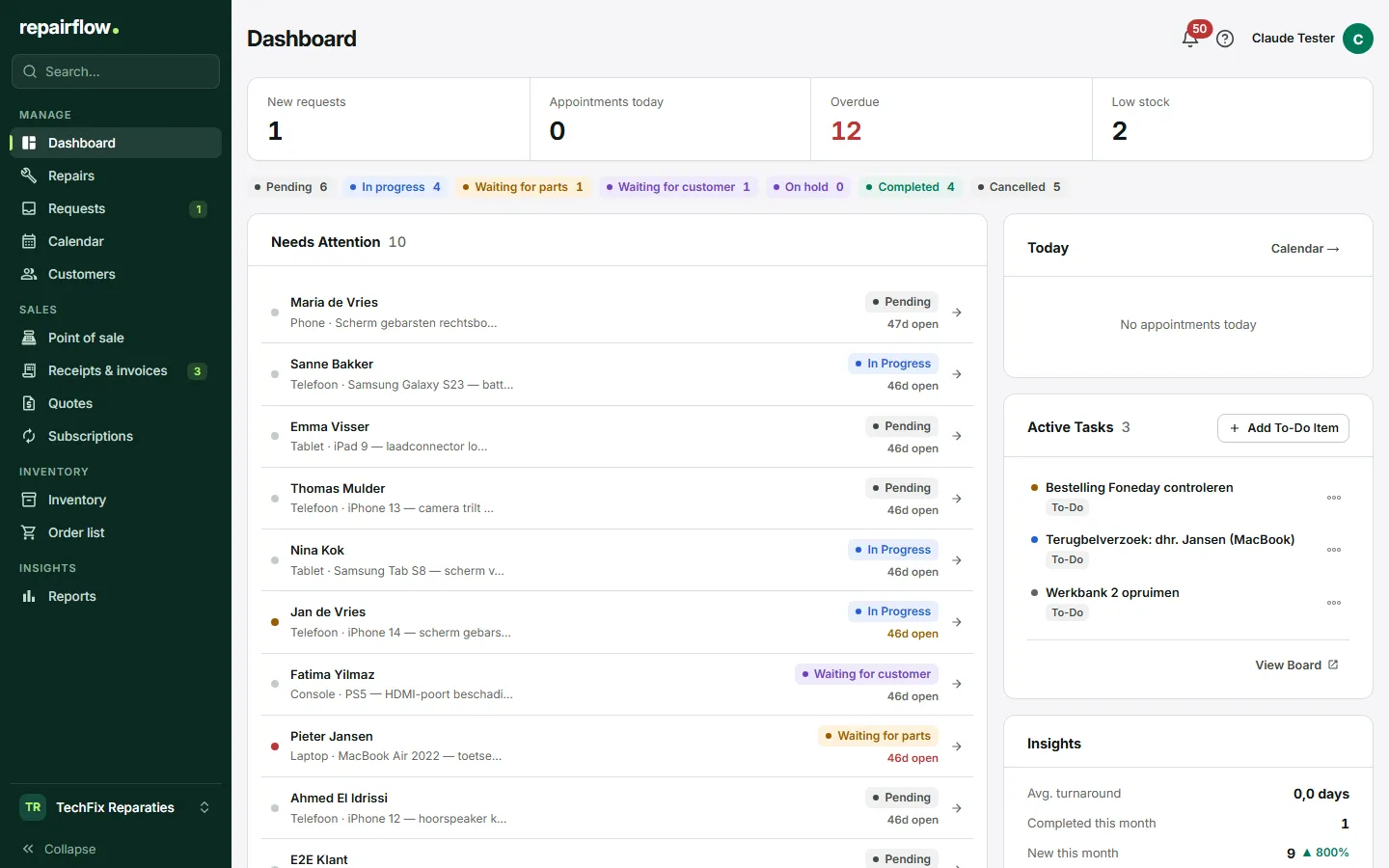
The dashboard is the first screen you see after logging in. At a glance you see what needs doing today, which repairs are running late and how the shop is doing. Almost every figure is clickable and takes you straight to the place it is about.
Where to find it
The dashboard is at the top of the sidebar, in the Manage group. After logging in you land on it automatically.
What is on the dashboard
The screen consists of a work area at the top and a figures area at the bottom. The dashboard refreshes itself when a repair or request is added or changes. So you do not need to reload the page.
Action figures
At the top are four figures. Clicking a figure takes you to the list behind it.
- New requests: requests that customers made through Online booking and that have not been handled yet. Click to go to Requests.
- Appointments today: all appointments in today’s calendar, including recurring ones. Click to go to the Calendar.
- Overdue: repairs that have been open too long. The figure turns red as soon as there is one. A click scrolls to the Needs Attention card.
- Low stock: active products whose stock is at or below the minimum. Click to open the inventory, filtered.
Statuses
Below that is a coloured label per repair status with the number of repairs, even when it is zero. Click a label to open the repairs list with only that status.
Needs Attention
This card shows open repairs that are taking too long. When a repair counts as overdue depends on its priority:
- Urgent: after 2 days.
- High: after 4 days.
- Normal or no priority: after 7 days.
The repair that has been open longest is at the top. For each row you see the customer, the category and description, the status and the number of days open. Click a row to open the repair. If everything is on time, it says All repairs on track.
Today
Here are today’s appointments and scheduled repairs, in order of time. If there are more than eight, you see at the bottom how many more there are. The Calendar button takes you to the full calendar.
Active Tasks
The tasks that still need doing or that someone is working on. For each task you see the priority, the title and the due date, with a marker if it has passed. Through the menu next to a task you can edit, move or delete it. View Board opens the full task board.
Insights
Four figures about this month: the average turnaround time of repairs that were finished, the number of repairs that were finished (set to Ready for pickup or straight to Completed), the number of new repairs (compared with last month) and the category that occurs most.
Repairs & revenue
At the bottom is one card with figures and a chart. At the top of the card you see Revenue today, This week, This month and Average ticket, each with the comparison to the previous period. The chart shows the number of new repairs per day as bars and the revenue as a line. Choose 7, 30 or 90 days at the top right.
These amounts add up the cost lines of repairs that were finished (set to Ready for pickup or straight to Completed), including VAT: what you charged the customer for the repair. Sales at the Point of sale are not counted here. For Point of sale revenue, use Reports.
Adding a task
- In the Active Tasks card, click the button to add a task.
- Enter the title and, if you like, choose a priority and a due date.
- Save the task. It appears in the list straight away.
You can also show tasks with a due date in the calendar, see the Calendar chapter.
A new shop
If your shop does not have a single repair yet, the dashboard shows a quiet version. The owner sees the card for setting up the shop, and everyone sees the card Ready for your first repair? with the button Create first repair. As soon as the first repair exists, you get the full dashboard.
Who can do what
- Owner: sees everything, including the set-up card as long as setting up is not finished.
- Manager: sees everything except the set-up card.
- Technician: sees the dashboard without money amounts. The revenue figures and the revenue line in the chart are hidden; the chart is then called Repairs.
Tips
- Start your day at Needs Attention: that is where you see which customer has been waiting longest.
- Give rush jobs the priority Urgent, so they stand out after only two days.
- If loading fails, you see a message with a button to try again instead of empty figures.
Updated on