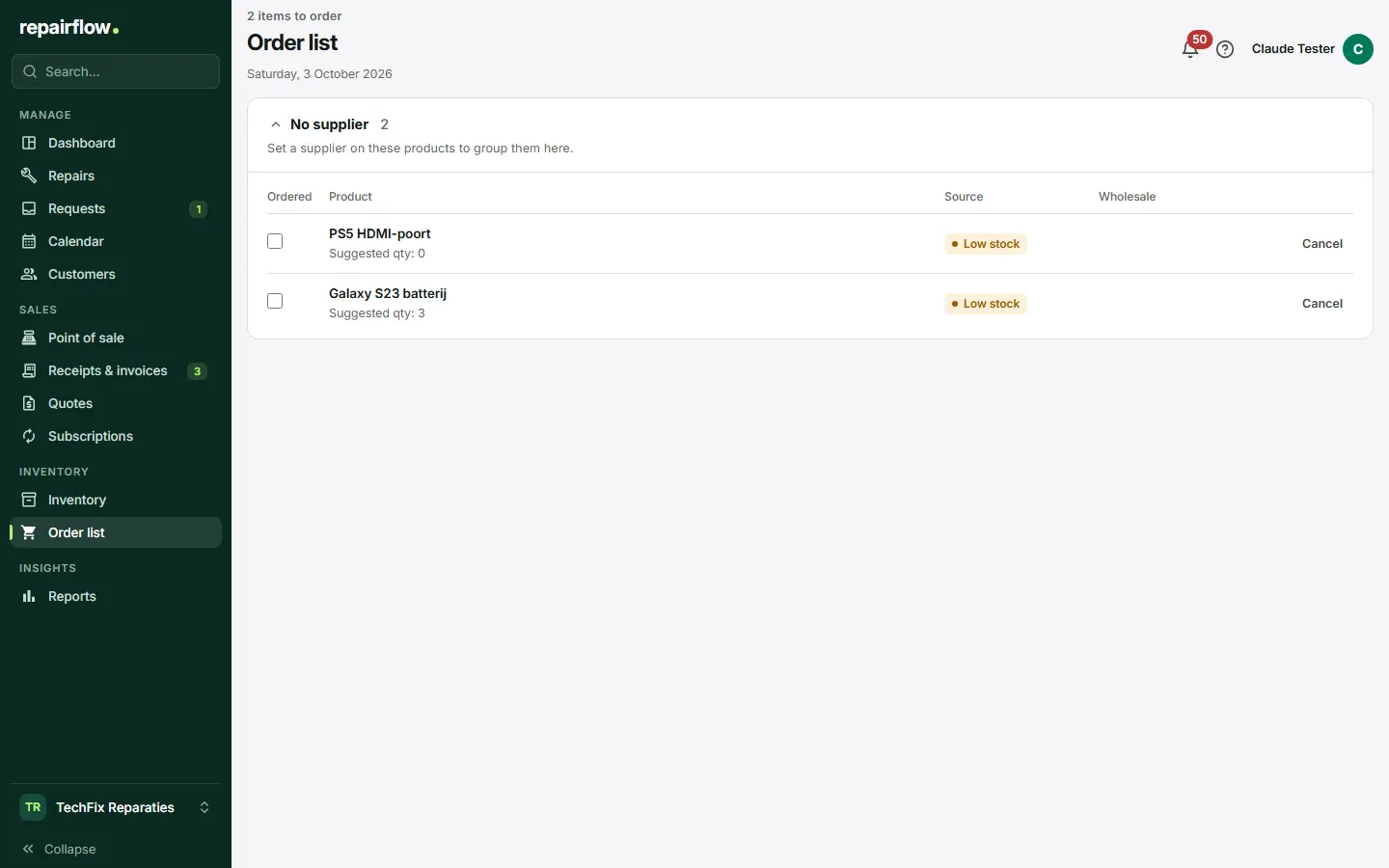
The Order list collects everything you need to order. Parts for approved requests, products that drop below their minimum stock and parts you add yourself from a repair all go onto this one list. You tick off what you have ordered and book in what has been delivered.
Where to find it
Order list is in the sidebar in the Inventory group, directly below Inventory. At the top of the page you see how many lines are open and today’s date.
How lines get onto the list
There are three ways:
- Request: if you approve an online request and a linked part is not in stock, it goes onto the list. The line refers back to that request.
- Low stock: if a product drops to or below its minimum stock, it goes onto the list by itself. Once the stock is back in order, such an automatic line also disappears by itself.
- Manual: you put a part on the list yourself, for example from a repair.
A product is open on the list only once, whatever put it there. That way you never order twice by accident.
Adding a part from a repair
- Open the repair and go to the cost lines.
- If a linked part has no stock, you see a notice at the line with the button Add to order list.
- Choose that button. The part goes onto the order list, linked to this repair.
Nothing else happens by itself: the status of the repair does not change and no order is placed anywhere. Set the repair to Waiting for parts yourself if that is the case.
Using the list
Open lines are grouped per supplier, so you can order from each wholesaler in one go. Lines you have already ordered are in a separate card that you can expand.
A line goes through these statuses:
- Open: still needs to be ordered.
- Ordered: you have placed the order.
- Received: the part has arrived.
You can remove a line that is no longer needed with Cancel as long as it is open or ordered. You click twice to confirm.
Placing an order
Place the order with your supplier as you are used to. Then choose Mark as ordered on the line. Repairflow does not order anything from your wholesaler itself; the status is only for your own overview.
Receiving a delivery
- Choose Mark as received on the line.
- If the line is linked to a product, a window opens with the quantity already filled in. Change it if a different quantity was delivered.
- Choose Receive + update stock to add the quantity to the stock straight away, or Mark only if you have already updated the stock yourself.
A line without a linked product is marked as received with one click.
When the part is for a repair
If a received line belongs to a repair, you get a notification at the bell that points to that repair. That way the technician knows they can carry on. The status of the repair does not change by itself; you decide when to get back to work.
Who can do what
- Everyone in your team can use the order list, add lines and change the status.
- A technician can also put a part on the list from a repair.
Tips
- Enter a minimum stock for your products. Then you do not have to keep track of low stock yourself.
- Enter the supplier for your products, so that the list is neatly grouped per supplier.
- On receipt, always choose Receive + update stock, unless you have already adjusted the stock another way. Otherwise you count twice or not at all.
- After a notification about a received part, check straight away whether you can set the repair back to In Progress.
Updated on