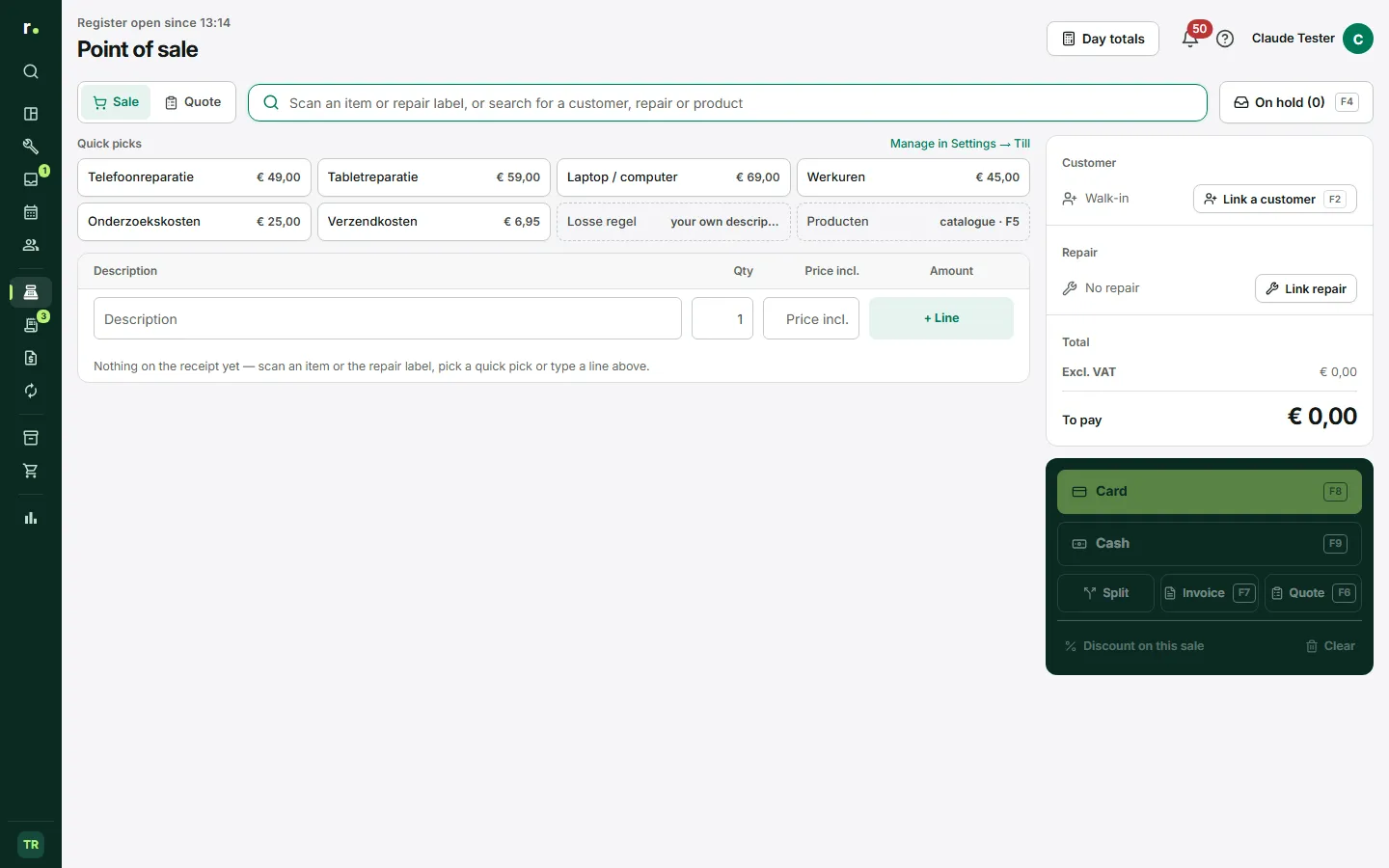
The point of sale is the sales part of Repairflow. You use it to take payment for repairs, parts and one-off services, by card, in cash or on invoice.
Where to find it
In the sidebar, group Sales, click Point of sale. You land on the day overview with today’s takings and the latest sales. Top right are New sale (the sell screen) and Day totals. Above the title is the register status: “Register open since 13:14”, “Register closed” or “Register status unknown” if it could not be loaded.
Opening the register
- Click Day totals. If the register is closed, you see the Open the register panel.
- Count the drawer and enter the amount under Cash in the drawer now. A float saved at the previous close is already filled in.
- Click Start shift.
While the register is closed, by default you cannot take cash. Card and bank transfer always work.
Ringing up a sale
Adding items and lines
- Scan a barcode or type in the scan field. It searches products, repairs and customers. Type
3*before a barcode to add three straight away. - Tap a quick pick, for example for a phone repair or labour hours. The Products tile opens the catalogue.
- Type a one-off line in the bottom row of the sale: description, quantity and price including VAT, and click + Line.
- In the ··· menu next to a line you choose Change the price, Give a discount or Remove line.
Linking a customer and a repair
Click Link a customer. You first see the recent customers and below them all customers from A to Z. Type to search, or create a new customer. The customer card then shows Edit, Switch and Unlink.
Click Link repair or scan the QR code on the device label. A repair that is ready for pickup or completed and still unpaid is settled: the costs go on the sale and after payment the repair is marked as paid. Any other repair becomes a reference: it appears on the sale, but nothing about it changes.
If the repair is Ready for pickup, the Point of sale sets it to Completed as soon as the receipt or invoice is recorded, also for an invoice on account. The confirmation after payment says so. A credit note does not set the repair back: the device has already been handed over by then.
Giving a discount
Give a discount on one line through ···, or on the whole sale through Discount on this sale. You can do this in euros or as a percentage.
Taking payment
Card, cash or split
- Card takes the whole amount at once, without an extra window. Key the amount into your card terminal.
- Cash opens the payment window. Enter the cash handed over and the till works out the change. The cash amount is rounded to 5 cents when that setting is on.
- Split is for when the customer pays with more than one payment method.
After payment you can print or email the receipt. Next customer starts a new sale.
Receipt or invoice
A sale produces a receipt by default. Click Invoice and choose Cash, Card or On account. Cash and Card produce a paid invoice, On account an open invoice with a due date. An invoice always needs a customer. If the customer is a business, every payment automatically becomes a paid invoice.
For an invoice from a paid receipt afterwards, click As an invoice. The number stays the same. Going back to a receipt is not possible.
Putting a sale on hold or clearing it
Click On hold and then Put this basket on hold to help another customer first. Resume the sale later from the same list.
Clear empties the sale after a confirmation. The draft is cancelled as well. Clear never touches a parked or completed sale.
Keyboard shortcuts
- F2: link or switch customer
- F3: search for a repair number
- F4: on hold
- F5: product catalogue
- F6: quote
- F7: invoice
- F8: card
- F9: cash
- Esc: back to the scan field
Shortcuts do nothing while a window or menu is open.
Day totals and closing the register
Cash in and out
On Day totals you record what happens to the drawer in between: Bank to cash, Cash to bank, Pay out (with a required reason) and Open drawer without a sale. You can never take out more than the drawer should hold.
Closing the shift
- Click Close the shift.
- Count the drawer by note and coin. You only see the expected amount after counting.
- If the difference is larger than the threshold (€ 5 by default), write down what you think happened.
- Check Opening float tomorrow. Lower the amount if you still take cash to the bank.
- Close and print the shift report with Print report.
Closed shifts shows per day the opening float, the count, the difference and what went to the bank.
Point of sale settings
Open the shop menu at the bottom left, choose Shop settings and in the group Store go to Register. There you set your payment methods, the coins and notes to count, the text below receipt and invoice, the payment term of invoices, the validity of quotes, rounding to 5 cents and your VAT number, Chamber of Commerce number and IBAN. You also manage the quick picks here: at most twelve tiles, in the order you drag them. As long as you save nothing, you see a default set of eight.
Who can do what
- Owner and manager: everything, including opening and closing the register, recording cash in and out of the drawer, giving discounts and changing prices, refunds, cancelling sales and invoices, viewing the figures and closed shifts and correcting stock.
- Technician: selling and taking payment, including on invoice, linking customers and repairs, putting a sale on hold and clearing their own draft. A technician cannot open or close the register, cannot record cash in or out of the drawer, cannot give a discount, cannot do a refund and cannot see the figures.
The rights follow the role; you cannot set different rights per employee in the app.
Tips
- Scan the QR label of a device: the repair is then on the sale straight away.
- Press Enter in the payment window with an empty amount field to book exactly the amount owed.
- If the customer pays partly in cash and partly by card, choose Split instead of two sales.
Updated on