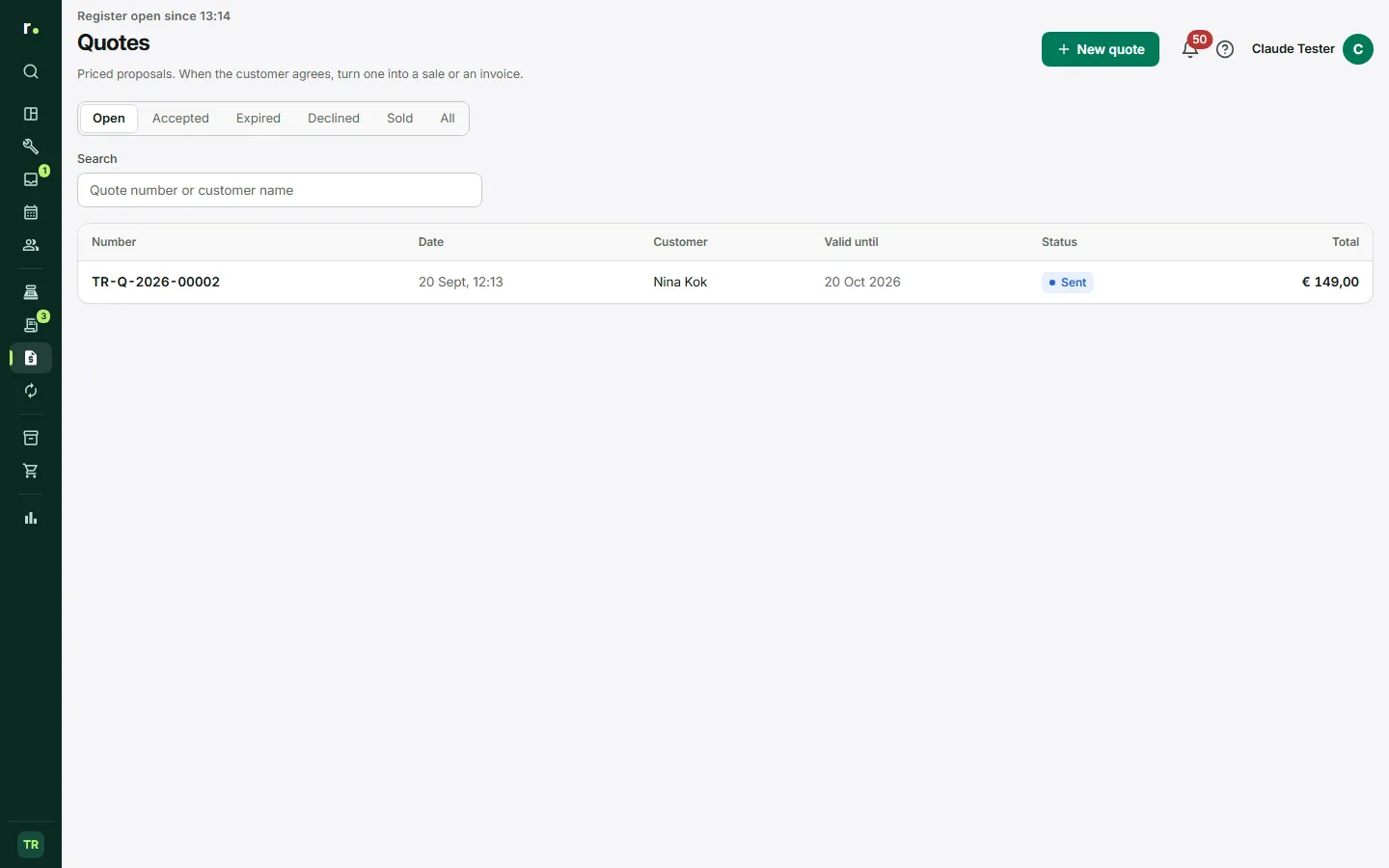
With a quote you give a customer a price in advance. You make it at the till, in the same way as a sale, but nothing is charged and nothing is taken from stock. If the customer agrees, you convert the quote into a sale or an invoice in a few clicks.
Where to find it
In the sidebar, group Sales, click Quotes. You see all quotes with their number, date, customer, validity, status and total. Top right is New quote.
Making a quote
- Click New quote. The till opens in quote mode. You can also click Quote on the sell screen or press F6.
- A bar above the sale shows that nothing is charged or taken from stock.
- Add the lines as you would for a sale: scanning, quick picks or one-off lines. A discount is possible too.
- Link the customer with Link a customer.
- Click Save quote. Check Quote for, Valid until and, if needed, a Note to the customer, for example about warranty or payment on collection.
- Save. The quote gets its own number, separate from your receipts and invoices.
The default validity is 30 days. You change it in the point of sale settings, see the Point of sale chapter.
Sending a quote
- Email to customer or Email quote sends the quote with a PDF attached. If the customer has no email address, you enter one in the drawer of the quote.
- Print prints the quote through your browser.
- If you gave the quote some other way, click Mark as sent.
Statuses
- Draft: saved, not sent yet.
- Sent: the customer has received the quote.
- Accepted: the customer agrees.
- Declined: the customer does not want to go ahead.
- Sold: a sale or invoice has been made from it.
- Expired: the date under Valid until has passed.
With the filters at the top of the list you choose which quotes you see. Search by quote number or customer name.
Changing a quote
As long as a quote has the status Draft or Sent, you can change it. Open the quote, click Edit, adjust the sale and click Save changes. A quote that has already been accepted, declined or sold can no longer be edited.
Accepted or declined
If the customer agrees, open the quote. Under The customer said yes? you choose:
- Take payment now: the sale appears in the till with the prices from the quote, including the customer. You take payment as usual.
- Issue invoice — pay later: the quote immediately becomes an invoice with the full amount owed.
If you first only want to record that the customer said yes, click Mark as accepted.
If the customer declines the quote, click Decline and enter a reason if you like. The quote stays in the list. With Reopen you turn it back into a draft later.
What happens after converting
A quote only gets the status Sold once the sale has really been completed. If you leave the sale in the till without taking payment, the quote stays as it was. A quote can be converted only once. In the drawer of the quote you then see which sale it became, and in the drawer of the sale which quote it came from.
Who can do what
Everyone who may sell may also make, send and convert quotes: owner, manager and technician. A discount on a quote needs the same right as a discount at the till, so only owner and manager.
Tips
- Put in Note to the customer what the price includes, such as an original part or the warranty period.
- Check the Expired filter regularly: those are customers you might still give a quick call.
- You can reuse an expired or declined quote with Reopen instead of making a new one.
Updated on